Overlay Color Changer
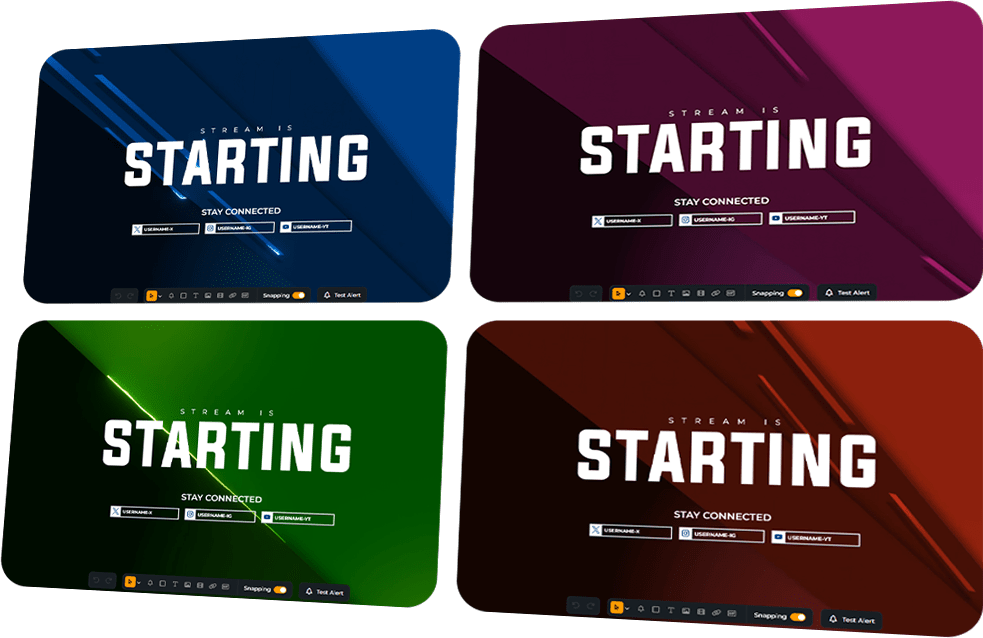
Limitless Design Possibilities
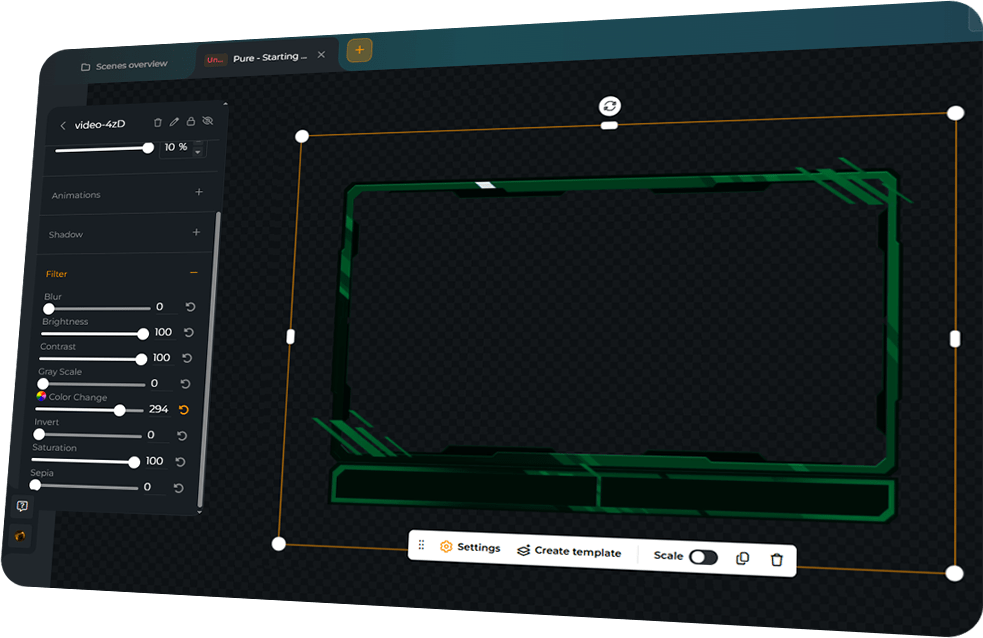
Works With All Broadcasting Tools
Stream Customization Made Easy
Explore endless customization options with our Overlay Color Changer. Adjust overlays, match alerts, and play with colors to create a vibrant, personalized stream. Free designs can be recolored, too, while the Stream Pass unlocks even more premium overlays to experiment with.
Pick colors, see live previews, and make your stream truly yours.
Save your design, copy the link, and add it to your broadcasting tool.
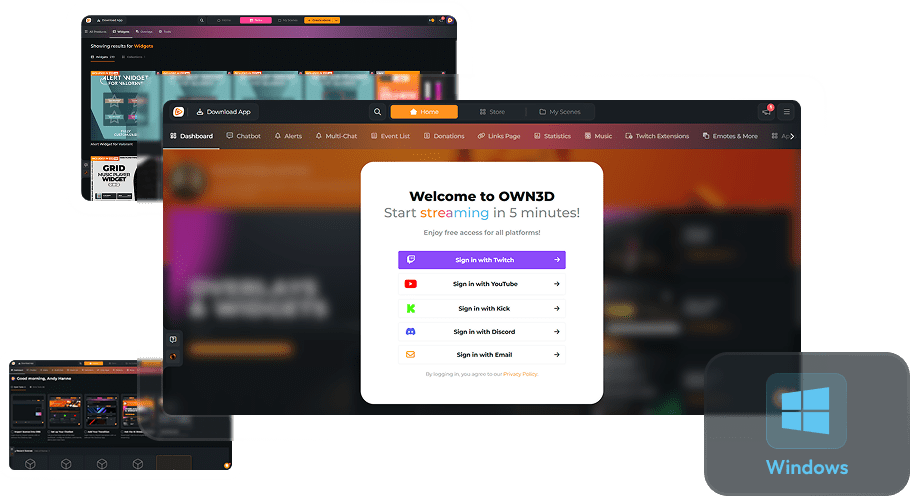
OWN3D Pro works with OBS Studio, Streamlabs, XSplit, and more.
Color Changer Features
Frequently Asked Questions
Can I recolor free overlays?
Yes! All free overlays can be customized using the Overlay Color Changer. Black-and-white designs remain unchanged.
Do I need a Stream Pass to use the Color Changer?
No. Free designs are fully supported. The Stream Pass gives access to hundreds of additional overlays and alerts that can also be recolored.
Can I recolor alerts to match my overlays?
Absolutely! Both free and Stream Pass alerts can be customized to match your overlay colors, creating a cohesive look for your stream.
Does it work with all broadcasting tools?
Yes. The Overlay Color Changer works directly in the Scene Builder, and all Scene Builder scenes can be added as browser sources to OBS Studio, Streamlabs, XSplit, and any other broadcasting tool.
Can I use it for Twitch, YouTube, or Kick?
Yes! OWN3D Pro is fully compatible with Twitch, YouTube, and Kick. Customize your overlay and alert colors with the Color Changer, then stream exactly the way you want.
If I purchase and unlock a specific design for the Scene Builder, can I still change its colors?
Yes! Many of our assets can be color-customized directly within the OWN3D Pro Scene Builder, giving you full flexibility for your stream’s look. If you purchase and unlock an individual design, you aren’t stuck with just one color scheme because you can adjust it to fit your brand. Please keep in mind that every asset is unique, and the available customization options can vary from one design to another. For example, designs that are primarily black or white might have more limited color adjustment options compared to colorful assets.
Once you have added your purchased asset to a scene, simply check the settings within the Scene Builder to see the available color options and filters. This way, you can make sure your new designs perfectly match your setup.